25 Reasons People Are Canceling Cable TV in 2026 For decades cable television was the primary way people watched TV. But over the last several years, millions of households have started canceling their cable subscriptions and switching to streaming devices. The main reason is simple: cost and convenience. Cable TV bills have steadily increased, while streaming technology has improved dramatically. Today, a streaming device connected to the internet can provide access to movies, shows, live TV, and sports without the expensive contracts associated with cable companies. Devices like the vSeeBox V6 Plus allow viewers to access entertainment through a simple plug-and-play setup. Below are the biggest reasons people are cutting the cord. Cable Is Expensive The average cable bill in the United States now ranges between $120 and $200 per month. When you add equipment fees, regional sports charges, and taxes, the cost becomes even higher. Streaming devices eliminate the need for large monthly cable bills. No Contracts Cable providers often require contracts or charge early termination fees. Streaming devices do not require contracts. Users can simply connect the device to their television and internet connection. Better Flexibility Streaming devices allow viewers to choose what they want to watch instead of being locked into channel bundles. You can watch: movies • sports • live TV • international channels • on-demand shows All through the internet. Easier Setup Traditional cable requires installation appointments and equipment boxes. Modern streaming devices take only a few minutes to install. Typical setup steps include: Connect HDMI Plug in power Connect to WiFi or Ethernet Start streaming Streaming Technology Has Improved Internet speeds are faster than ever. High-speed connections allow smooth HD and 4K streaming. Devices such as the vSeeBox V6 Plus are designed specifically for high-quality streaming performance. Additional Reasons People Cancel Cable Other reasons include: fewer commercials • access to international content • portable streaming devices • easier navigation interfaces • customizable viewing options How Much Money Can You Save? Consider the typical comparison: Cable subscription: $150/month $1,800 per year Streaming device: One-time purchase Many households save thousands of dollars over time. The Future of Television Streaming technology continues to grow rapidly. As internet speeds improve and devices become more powerful, more people are switching away from traditional cable. For many viewers, a streaming device like the vSeeBox V6 Plus provides an easier and more flexible entertainment experience. How to Watch Free Live TV Without Cable in 2026 (Save Hundreds Every Month) Every year, more households are canceling cable television. With cable bills now averaging $120 to $200 per month, many people are asking the same question: How can I watch live TV without cable? Read Full Article For any other inqueries, please contact our online customer support agent or email info@vsee-box.com and we will get back to you as soon as possible. Buy Now
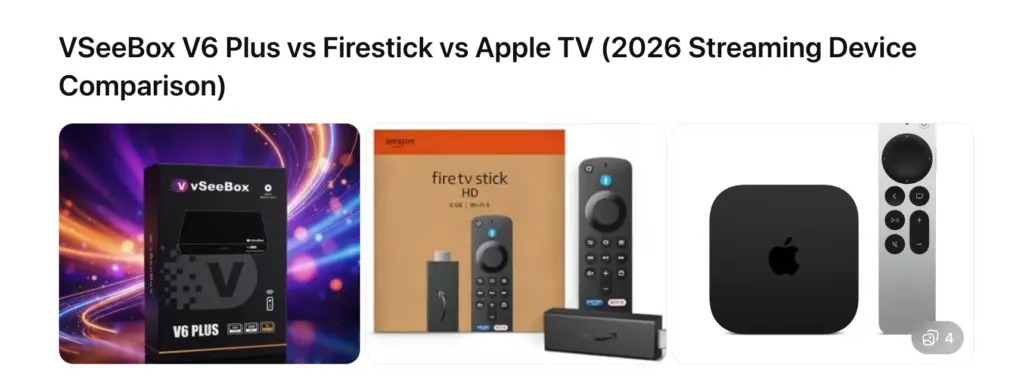
VSeeBox V6 Plus vs Firestick vs Apple TV: Which Streaming Device Is Best? Streaming devices have completely changed how people watch television. Instead of paying $100–$200 per month for cable, millions of households are switching to streaming boxes that connect directly to the internet. Three of the most popular options today are: vSeeBox V6 Plus Amazon Fire TV Stick 4K Apple TV 4K But which one is actually the best? This guide compares them based on: ✔ content access✔ streaming performance✔ ease of setup✔ price✔ overall value Quick Comparison Feature vSeeBox V6 Plus Firestick 4K Apple TV 4K Device Type Android Streaming Box HDMI Streaming Stick Premium Streaming Box Setup Time ~5 minutes ~5 minutes ~5 minutes Live TV Access Built-in apps Requires subscriptions Requires subscriptions Ethernet Port Yes Adapter required Yes Performance Fast Moderate Very Fast Price Mid-range Low High For many households looking to simplify their entertainment setup, the vSeeBox offers one of the most flexible streaming experiences available. Device Design and Hardware vSeeBox V6 Plus The vSeeBox V6 Plus is a full Android streaming box designed for performance and stability. Key hardware features include: HDMI output• Ethernet port for stable internet• USB ports for accessories• Bluetooth remote control• Fast Android operating system Because it is a full streaming box, it provides more connectivity and flexibility than streaming sticks. Firestick 4K The Firestick is a compact streaming stick that plugs directly into your TV. Advantages include: small size• low price• easy installation However, because it is a stick, it has limited hardware performance and no built-in Ethernet port. Apple TV 4K Apple TV is a premium streaming device designed for users in the Apple ecosystem. Benefits include: extremely smooth interface• powerful processor• Apple ecosystem integration However, the device costs significantly more than most streaming devices. Content Availability One of the biggest reasons people buy streaming devices is access to entertainment. vSeeBox V6 Plus The vSeeBox provides access to a wide variety of content including: live TV channels• movies• TV shows• sports programming• international channels Many users prefer having multiple entertainment options accessible from one device interface. Firestick Firestick relies heavily on separate subscription services like: Netflix• Hulu• Disney+• Amazon Prime Video• YouTube TV This means users often need multiple subscriptions to access everything they want to watch. Apple TV Apple TV focuses heavily on Apple services such as: Apple TV+• iTunes Movies• Apple Arcade• App Store streaming apps It works best for people already invested in the Apple ecosystem. Performance and Streaming Quality All three devices support HD and 4K streaming, but performance can vary. VSeeBox V6 Plus Performance advantages include: ✔ optimized Android system✔ stable Ethernet connectivity✔ fast navigation The Ethernet port is especially helpful for reducing buffering during high-bandwidth streaming. Firestick Firestick works well for basic streaming, but the smaller hardware may feel slower when switching between apps. Apple TV Apple TV features one of the fastest processors in any streaming device, which results in extremely smooth navigation. Ease of Setup All three devices are relatively simple to install. Typical setup takes just a few minutes: 1️⃣ Connect HDMI to your TV2️⃣ Plug in power3️⃣ Connect to WiFi or Ethernet4️⃣ Pair the remote Most users can complete installation in under five minutes. Price Comparison Pricing varies widely depending on the device. Firestick Usually the lowest priced streaming device. However, users often pay for multiple streaming subscriptions. Apple TV The most expensive streaming device in the category. Primarily designed for Apple ecosystem users. vSeeBox The vSeeBox sits in the mid-range price category but provides access to a large amount of entertainment. For many households, this makes it a great overall value. Which Streaming Device Is Best? Your best choice depends on your priorities. Choose vSeeBox V6 Plus if you want ✔ live TV and entertainment in one interface✔ fast setup✔ Ethernet connectivity✔ flexible Android streaming platform Choose Firestick if you want ✔ lowest upfront price✔ Amazon ecosystem integration✔ simple streaming apps Choose Apple TV if you want ✔ Apple ecosystem integration✔ premium hardware✔ extremely smooth performance Final Verdict All three devices offer excellent streaming experiences. However, for many households looking for maximum entertainment access with simple setup, the vSeeBox V6 Plus provides one of the most versatile streaming solutions available today. Frequently Asked Questions Is vSeeBox better than Firestick? Many users prefer vSeeBox because it provides more flexibility and live TV options in one device. Does vSeeBox support 4K streaming? Yes. The vSeeBox V6 Plus supports 4K Ultra HD streaming. Do I need cable to use vSeeBox? No. The device connects directly to the internet. Can I use WiFi with vSeeBox? Yes. The device supports both WiFi and Ethernet connections. For any other queries, please contact our online customer support agent or email info@vsee-box.com and we will get back to you as soon as possible. Buy Now
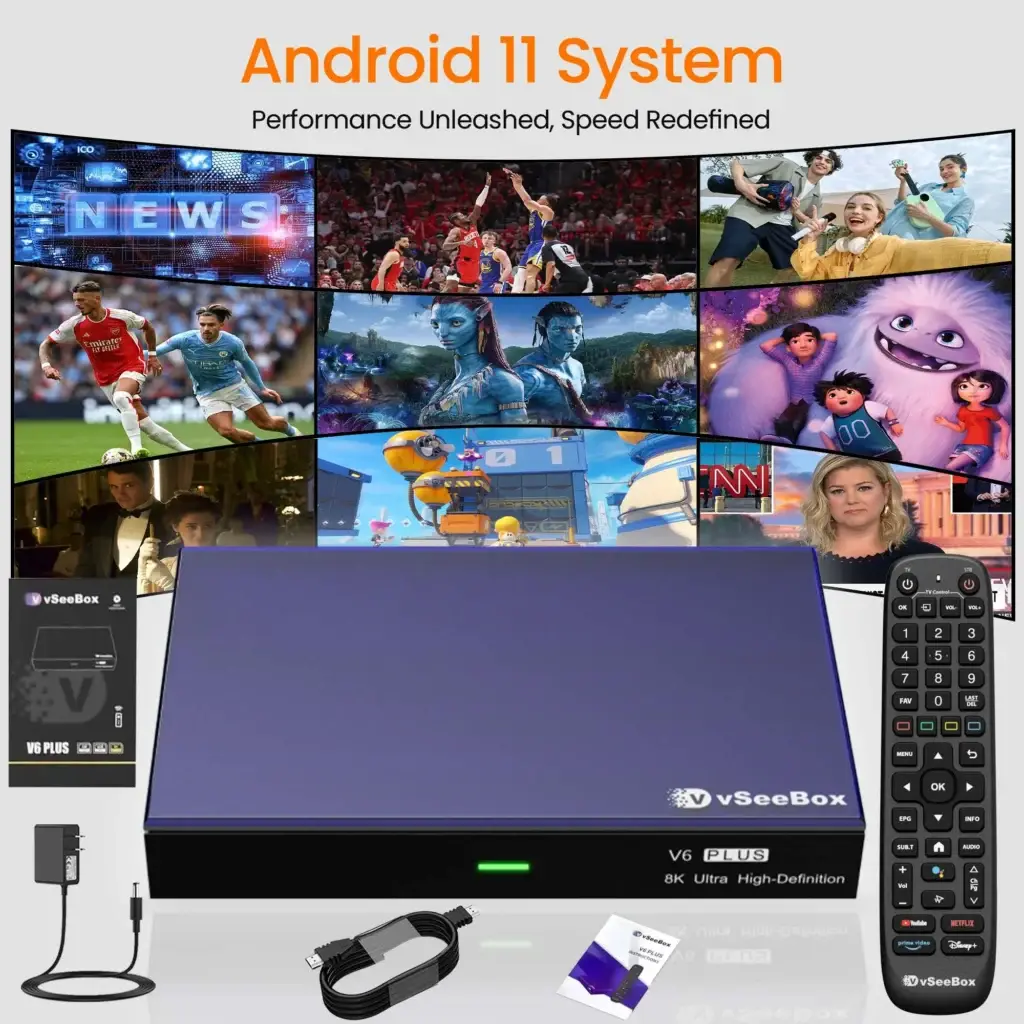
Thank you for your purchase of the brand new vSeeBox V6 PLUS, let’s go through the setup procedure: The VSeeBox V6 Plus is one of the easiest streaming boxes to install. In most cases, setup takes less than 5 minutes and gives you access to thousands of live channels, movies, and TV shows. This guide walks you through the complete setup process from unboxing to watching your first channel. What Comes in the Box • VSeeBox V6 Plus streaming device• Remote control• HDMI cable• Power adapter• User manual Before starting setup, make sure your TV has an available HDMI port and you have WiFi or Ethernet internet access. Basic Setup Connect the V6 PLUS with the power adaptor; Connect the V6 PLUS to your TV/Monitor with the HDMI cable provided, or your AV Cable if you need to connect with the AV port; Put two AA batteries into the Bluetooth remote. Now finish the setup together with the initial-setup wizard program 1. Wait for the boot animation to complete 2.Pairing a Bluetooth remote control: Press and hold the [OK] and [- Volume] buttons at the same time. After pairing is successful, “Remote control connected successfully” will be displayed and the next step will be automatically entered; 3. Select your Language, then press [OK] to next; 4. Adjust the screen size according to your display effect until the screen edge matches the TV, then select NEXT and press [OK] to proceed to the next step 5. Select time zone, then press [OK] to next; 6. Read our agreement, press [▼] to select the Agree button, and press [OK] to proceed to the next step 7.Select your WIFI and press [OK] to enter the password 8. All subsequent operations will be completed automatically without any intervention on your part. Including automatic configuration and App installation,After everything is completed, you will automatically enter the desktop! Optimize Your Streaming Performance To ensure the best experience with the VSeeBox V6 Plus, follow these recommendations. Use Ethernet When Possible A wired connection prevents buffering. Internet Speed Recommendation For smooth streaming: Minimum: 25 Mbps Recommended: 50–100 Mbps Restart After Setup After installing the device: Restart the VSeeBox Restart your router This refreshes the connection and improves performance. For any other queries, please contact our online customer support agent or email info@vsee-box.com and we will get back to you as soon as possible. Buy Now
When Streaming Glitches Strike, Don’t Panic—Just Reset or Clear Cache! Whether you’re binge-watching your favorite series, catching live sports, or scrolling through apps, every once in a while your V3 Plus vSeeBox might act up: apps freeze, buffering appears, controls go unresponsive. The good news? In most cases, you don’t need to call support or reboot your entire home network. A quick reset of your device—or simply clearing the app cache—will have you back in action in under a minute. Why Do Little Glitches Happen? All smart devices use a combination of memory, temporary files, and background processes to run smoothly. Over time, these “cache” files can become bloated or corrupted, and apps may hang if they’ve been idle too long. Common causes include: App updates that leave old data behind Temporary network hiccups that freeze an app mid-stream Memory overload when too many apps run in the background These minor hiccups are normal across all streaming devices—and easily fixed. Quick Fix: Soft Reset Your V3 Plus A soft reset is the simplest way to give your vSeeBox a fresh start without losing any of your customized settings: Navigate to Settings From the home screen, scroll to the bottom of screen, select “System Settings”. Select “Device Preferences” Choose “Restart” Confirm and wait 30–60 seconds for the box to reboot After restarting, all background processes clear and memory is refreshed, so apps launch from scratch—no more freezing or stutters. When a Reset Isn’t Enough: Clear the App Cache If a particular app is still misbehaving (for example, Netflix stalls at the loading screen), clearing that app’s cache often solves the problem: Open Settings → Apps Scroll down and select the troubled app (e.g., “YouTube,” “Hulu,” “ESPN”) Tap Storage & cache Choose Clear cache Tip: Don’t hit “Clear data” unless you’re okay signing back in and re-configuring that app. Cache clearing only removes temporary files. The Deep Clean: Uninstall/Reinstall On rare occasions, an app update may leave behind deeper conflicts. Uninstalling and reinstalling is a fast way to pull a fresh copy from the Play Store: Settings → Apps Select the app → Uninstall Open the Play Store app on your vSeeBox Search for the app name and Reinstall You’ll retain your login credentials (so long as you know your username/password) and get the latest stable version. Keep Your V3 Plus Healthy Regular restarts: A weekly reboot prevents cache buildup. Manage background apps: Close unused apps (press and hold Home → Swipe up). Monitor storage: In Settings → Storage, delete old files or screenshots you no longer need. A few minutes of routine care keep your V3 Plus humming. Still Stuck? Next Steps If you’ve reset, cleared caches, and reinstalled, but problems persist: Check your internet connection at the router or modem. Update system software: In Settings → About → System update. Contact support: Our team is ready to help at info@vSee-box.com Conclusion Streaming pauses, app freezes, and sluggish performance happen to every smart-TV device—even the V3 Plus vSeeBox. The great news is that in 60 seconds or less, you can reset your box or clear an app’s cache to restore peak performance. Think of it like a quick reboot for your phone—you’ll be back to uninterrupted entertainment before you know it! Channel List
Thank you for your purchase of the brand new vSeeBox V3 PLUS, let’s go through the setup procedure: Basic Setup Connect the V3 PLUS with the power adaptor; Connect the V3 PLUS to your TV/Monitor with the HDMI cable provided, or your AV Cable if you need to connect with the AV port; Put two AAA batteries into the Bluetooth remote. Now finish the setup together with the initial-setup wizard program 1. Wait for the boot animation to complete 2.Pairing a Bluetooth remote control: Press and hold the [OK] and [-] buttons at the same time. After pairing is successful, “Remote control connected successfully” will be displayed and the next step will be automatically entered; 3. Select your Language, then press [OK] to next; 4. Adjust the screen size according to your display effect until the screen edge matches the TV, then select NEXT and press [OK] to proceed to the next step 5. Select time zone, then press [OK] to next; 6. Read our agreement, press [▼] to select the Agree button, and press [OK] to proceed to the next step 7.Select your WIFI and press [OK] to enter the password 8. All subsequent operations will be completed automatically without any intervention on your part. Including automatic configuration and App installation,After everything is completed, you will automatically enter the desktop! For any other queries, please contact our online customer support agent or email info@vsee-box.com and we will get back to you as soon as possible. Buy Now

vSeeBox provides Heat Live app for more than 2,000+ Live TV channels for users to enjoy happiness from watching tv without further subscriptions, which makes vSeeBox a game-changer for TV entertainment. We recently received many new users enquiring about how to use the Heat Live app. Today this article will show you all the functions of Heat Live and how to use it. 1. How to use the EPG TV Guide 2. How to add channels to favorite 3. How to use the Search function 4. How to use the 7 Days Playback feature 5. How to clear the history record 6. How to remove network speed displaying on the top right corner 7. How can I update the Heat Live app 1. How to use the EPG TV Guide Let’s start with the EPG function first. Heat Live has two different styles of EPG TV Guide, including Normal EPG and Classic EPG. Normal EPG guide is easy for navigating between channels and categories, meanwhile, the Classic EPG guide is easy for navigating the whole timeline of the channel program. Before using the EPG: Please check your vSeeBox to see if the Time, Date and Timezone are set correctly. You can visit Home Screen, Settings, Device Preferences, Date & time. If it still shows the incorrect time, please turn off the “Automatic date & time” function, and turn it on again. Then it would update to the correct one. vSeeBox Time and Date settings Normal EPG To access Normal EPG, you can open the Heat Live app, on the Live TV screen, you can press “OK” on your remote, and then the Normal EPG will open. In the Normal EPG, you can see there’s a Menu, Channels, Categories, and Channel List. vSeeBox Heat Live normal EPG Let’s take a look at the Channels part. You can find all the channels by categories on the left-hand side, with National, Local, Sports, Canadian, Latino, NFL, MLB, NBA, NHL, and PPV sections. You can press the “up” and “down” buttons on the remote to find channels between different categories. Click “OK” to select the channel. You can get more information about the channels. Press the “right” button on your remote when you hover over the tv channel, and a new column will show on the right-hand side. It indicates the Program Name, Duration, also with those upcoming events or previous events. You can click the “up” and “down” button to navigate around events and different dates. vSeebox Heat Live normal EPG details vseebox heat live normal epg details – programs, date, time Classic EPG To access Classic EPG, you can simply press the “EPG” button on the remote to call the Classic EPG out. On the Classic EPG interface, you can also find the Channel Logo, Channel Name, Program name, Duration of the current program and program description. It’s in timeline style, and you can navigate between different times and dates. Long Press the “Left” button to switch to different categories. vSeeBox Heat Live Classic EPG For Sports channels, you can find the games, and understand when the game plays easily. Take this NFL game as an example, on the Classic EPG, you can see that before the game starts, it shows “game will start at the specific time”, also 30 minutes before the game starts, it shows “game will be starting soon at the specific time”, and when the game plays, it shows “Team A @ Team B and the time”. vSeeBox Heat Live Classic EPG – Sports EPG details 2. How to add channels to favorites You can add channels to favorites to find them easily on your favorite list. There are two ways you can achieve this function. 1st way: Long press the “OK” button of your remote while hovering on the channel, white heart icon appears when it successfully added to Favorite List. Vice Versa, long press the “OK” button over the channel again to cancel favorite. Add channels into Favorite List by Long pressing OK button 2nd way: Click “OK” on your remote, visit the MENU page, and then you can see the Favorite tab. In the Favorite tab, it will list all the tv channels. You can click the “OK” button to select the channel to favorite. Vice Versa, click “OK” again to cancel it from your favorite. Add Favorite in Menu Page To check your favorite channels, you can click “OK” on the Live TV screen to call out the Normal EPG. On the left-hand side, there is a tab FAVORITE LIST. You can click and open the channels. Check Favorite channels you added 3. How to use the Search function vSeeBox Heat Live app provides more than 1,000 live tv channels with National, Locals, Sports etc. Instead of rolling around those huge amounts of channels, you can use our Search function to find your wanted channels. Click “OK” on your remote to open Normal EPG, you can see the search section on the top of channels section. You can search your wanted channel name, by searching part of the channel name or location name, e.g. Telemundo 52 Los Angeles KVEA, you can search “Tele” or “Telemundo” or “Los Angeles” or “KVEA”. Search function inside Normal EPG on top of channels section Search function 4. How to use the 7 Days Playback feature Currently vSeeBox V1 Pro model supports 7 days playback feature for over 50+ Live TV channels, and sports events like MLB, NFL, NHL, NBA and PPV. With the playback feature, you don’t need to record the program manually, you can just navigate inside EPG, select the past 7 days’ program and play. For channels that support the playback feature, you will notice that there is a “Replay” icon beside the name of the channel. Icons indicating playback available with this channel Access Playback from Normal EPG Click the “OK” button on the Live TV screen to call out the Normal EPG first. Take the BTN Big Ten Network as an example, it

